Get Organized with Custom User Fields
Posted: November 17, 2014 Filed under: Salesforce Tips and Tricks, SFDC Admin 101 | Tags: User Management 1 CommentOne of the sessions that I presented at Dreamforce this year was “Don’t Let Managing Users Manage You” where I shared 10 tips to make user management less of a pain.
Because user management is such a time-consuming and high-profile part of most admins jobs I thought I would share my tips here over 10 blog posts where I can go into detail about each one.
Tip #1: Get Organized with Custom User Fields
I like to add custom fields to the user object to help stay organized. Obviously you can tailor these custom fields to your unique needs but here are some ideas of general-purpose custom fields that you may want to use.
- Admin Notes – I create a ‘private’ system admin-only field to track notes such as who requested the user be set up or deactivated, why and when.
- Cost Center – This is useful if you need to create reports to charge back licenses to the correct group.
- Personal Information – Common fields are personal Email and personal phone. Great for users to connect after hours.
- Mobile Device – Here I track what type of mobile device they are using such as iPhone, Android or iPad. This is great for finding testers and sending device specific updates. (I’ll cover more about that on a future blog post)
- Additional App Licenses – If you have add-on apps you may want to track what users have access. This can be redundant information but is very helpful to have every app license in one central place for reporting, terminations, and testing.
- Signature Block – If you use email templates consider adding a signature block to the users record to prepopulate and format address and company taglines.
- Photo Url – To include photos on html email templates just place the url of the photo on the users record. An easy way to get a url is to load the photos to a public Document in Salesforce. Then just include that field in email templates
- Access Deactivation date – Add a custom date field to track when you deactivated the user or when you should deactivate their license. Sometimes you know in advance when to turn off seats (terms or trial users) just put in a date and use workflow rule to auto-deactivate them. (look for more tips on user workflow rules in a future post).
This is just scratching the surface for custom user fields.
To add custom fields just go to Setup>>Customize>>User>>Fields>>New.
As with any custom field, you can choose what profiles can View and Edit these new fields. You can also update your page layout so they are displayed in a logical manner. Unfortunately you can not change the layout for the Standard User fields which display at the top of the User page.
#SMT
I’m Back From Dreamforce. Now What?
Posted: October 31, 2014 Filed under: Uncategorized Leave a commentWhew! Once again Dreamforce proved to be an amazing four days of learning, networking, and peering into the future of Salesforce.
I don’t know about you, but I only now feel like I’ve got caught up on the work I missed and readjusted to my time zone to finally have time to digest all that I learned at DF14. Here’s my plan of attack post-Dreamforce:
1. Expo Hall Vendors
According to Fitbit, I chocked up 36.89 miles of walking the week of Dreamforce–most of that on the floor of the expo hall. Now I’m getting tons of calls and emails from all the booths I stopped by (which was just a fraction of the total booths). I grabbed a flyer for those vendors I felt had the most compelling solution for my needs. I keep these near my desk so that when a vendor calls I can dig for their flyer to remind myself about them. If they don’t have a flyer–well then good luck Mr. Telesales because I’m expecting you to sell me.
I also went through my flyers post-Dreamforce to see which ones I want to learn more about. I try to notate on them while at the booth my initial thoughts so I can recall them later and determine which ones I want to see a demo of.
2. Dreamforce Breakout Sessions
After Dreamforce I like to re-read the notes I took for the sessions I attended. I also check out the Dreamforce section of Success.Salesforce.com to download the presentation.
Due to schedules, it wasn’t possible to attend all the sessions I wanted to. Fortunately, I “Favorited” them so now I can go back to the ones I favorited and download those presentations, read the Chatter comments and, in most cases, catch a recording of them.
3. Dreamforce Announcements
Obviously lots of new products and features, like The Analytics Cloud, Journey Builder for Apps, Process Builder, and Lightning, were announced at Dreamforce product keynotes. Now that I’m back home I take the time to learn more about these products to see if they are a good fit for me.
4. Dreamforce at User Group Meetings
Despite my best efforts, I almost always tend to miss something really noteworthy or helpful that was shared at Dreamforce. That’s why I love connecting with other users at my local User Group meeting to see what they saw and learned. Be sure to find your local Salesforce User Group today and don’t miss their post-Dreamforce meet-up.
Lastly, I type up all my notes from the vendors, sessions and keynotes into one central document that I can reference in the future and distribute to my co-workers.
###
SMT
Overcoming the Salesforce Tab Limit
Posted: July 30, 2014 Filed under: Salesforce Tips and Tricks, SFDC Admin 101 Leave a commentMost Salesforce orgs have a limit to the number of custom “Tabs” that they can have. Currently, the limit is 5 for Group, 10 for Professional and 25 for Enterprise. Throw in a few custom objects and websites and it is easy to hit the ceiling on Tabs.
Fortunately there is an easy way to get to an objects Home page without using one of your precious few tabs.
Instead of a tab at the top you can easily add quick links to the left side-bar of your Salesforce screen that takes the user to the desired page.
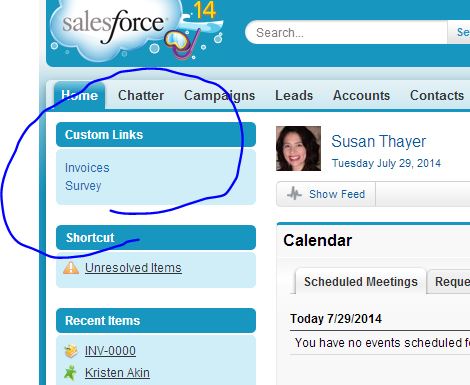
The first thing to do is to get the secret Entity ID to your custom objects home page. This is easy to do. Just go to ANY record for your custom object. Look at the URL and take note of the first three characters after “Salesforce.com”.
In this example, it is “a03”

Two items of note, alpha characters are case-sensitive and zero (0) and O are really, really hard to tell apart. To reduce the likelihood of error I like to copy and paste.
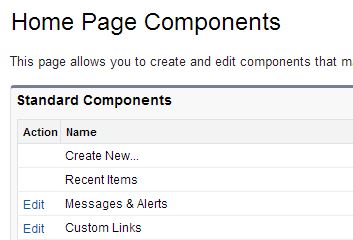
Now that you have your secret code to your custom object it’s time to create a custom link. Go to Setup>>Customize>>Home>>Home Page Components and click {Edit} next to “Custom Links”
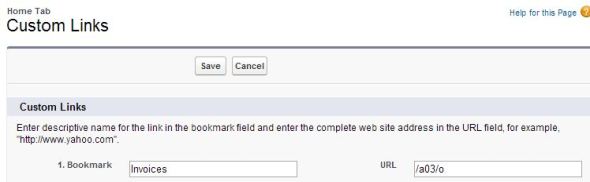
Enter a new Bookmark name to display and then the URL to link to. The URL only needs to contain the 3 digit Entity ID. You should remove the first part of the url that references the specific server (In this example I omitted https://na14.salesforce.com). This will allow your link to work even if you are moved to a new Salesforce server.
I also like to add “/o” to my link so it takes the user to the “Recent Items” view for the object and it displays the object name at the top. It works without the “/0” but that takes the user to their last List View.
So in this example, all I place in the URL to link to field is /a03/o
Now I make sure my “Custom Links” are displaying on the home page layout by going to “Home Page Layout” edits. I check the box next to “Custom Links” to display and indicate the order the narrow components should be in.

If you don’t want every user to see the link or you want different links for different groups there are ways to add Custom “Components” to different page layouts. For this example, we’re keeping it simple with just one group of “Custom Links”.
Viola! Now my links to my custom objects display on the left-side navigation for every page I visit just like a tab would display across the top on every page.
Clicking the link will take me directly to that objects home tab, as shown below, where I can now see my recent items and run any list view.

Note: If you don’t see the home page components on all pages then go to Setup>>Customize>>User Interface>>Settings and check “Show Custom Sidebar Components on All Pages”.

You can do this same thing for links to standard objects, Visualforce pages, and other web pages.
One very popular use for custom links is to link to the Activities tab. For your reference that is Entity ID number “/007”. Many users find it nice to have quick links to “My Open Activities” or “Today’s Activities”. That allows them to jump to activity list views without having to go to the Home Page.
What will you link to?
-SMT
Displaying a Calendar in Salesforce 1
Posted: April 29, 2014 Filed under: Salesforce Tips and Tricks, Salesforce1 | Tags: Calendar, List Views, Salesforce1 5 CommentsSalesforce1 is a great tool for road-warriors; it lets them see key contact and account information anywhere, update opportunities in real-time and add notes, photos and other updates from meetings. There is one big thing missing though–the ability to see a calendar of activities.
Until Salesforce gets this functionality added, I have created a workaround using Visualforce and Activity List Views to create a new Salesforce1 calendar view accessible from the Navigation menu.
Here’s how to add a calendar view to Salesforce1 in 3 easy steps:
Step 1: Start by creating Activity List Views
- Start by going to the following url https://naX.salesforce.com/007 (be sure to replace the X with the number assigned to your org).
- Then click on “Create New View” and create a list view per normal.
- Filter on “My Activities” that are not closed. Use Due Date to add your time range. <TIP>You can use relative date values, such as “This Week” or “Next 14 Days” in your filters.
- Since this will be loaded on mobile devices, I recommend a max of four columns; due date, subject, (contact) name, and related to.
- After you save the list view make note of the list view ID. This is shown in the url on the screen that appears after you click “save”. You’ll need the list id for step 2.
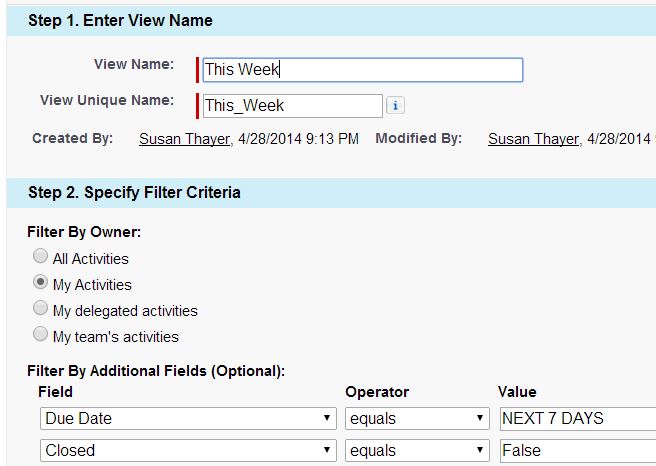
Note: You can create multiple list views such as “This Week” and “Next Week” or larger time periods like “Next 30 Days”. Views can be combined into one tab or create separate tabs. Be sure to keep download speed in mind when designing list views.
Step 2: Create a Visualforce page to display the activity view
- This is real easy to do! Go to “Setup” and search for “Pages”.
- Once on Pages, click “New”. Give your page a label, name and description.
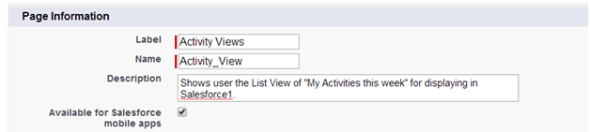
- Check “available for Salesforce mobile apps”
- Delete the sample code and replace with the following code.

<apex:page >
<apex:enhancedList type=”Activity” height=”600″ listid=”00BM0000000OKQp” customizable=”FALSE” rowsPerPage=”10″/>
</apex:page>
Note: This list view is set for 600 pixels, the majority of phones have a screen resolution of 320 pixels high; adjust accordingly for your users.
Step 3: Create a Visualforce tab and add it to Salesforce1
Now that the page is created you’ll need to create a tab to display the results. Here’s step by step how to do that.http://help-jupiter.sfdro.com/apex/HTViewSolution?id=000188546&language=en_US
Be sure to check “Mobile Ready” and add the tab to your selected list under “Mobile Navigation”.
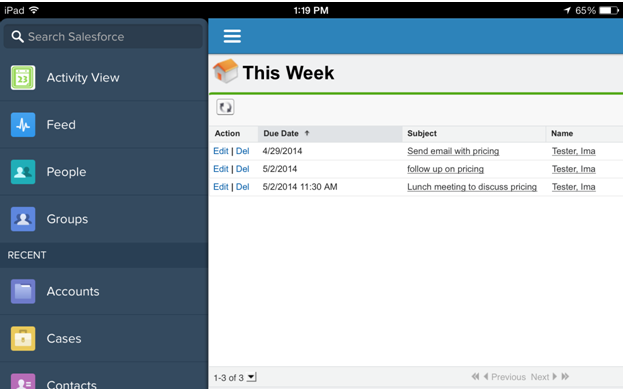
That’s it! Now log into Salesforce1 to test out the new navigation option. In this example, clicking on “Activity View” in the left side navigation will take the user to the list view for “This Week”.
Now your mobile users can see more than just “Today”. They can see any list view that you configure for them. You can even combine list views in one view or create a separate navigation link for different views.
Now if a sales rep is on the road, they can easily glance to see who they are meeting tomorrow and when. If you create a list view for “Next 30 Days” they can even check their calendar in Salesforce1 and schedule follow up appointments with confidence knowing that they are available.
-ST
Dreamforce 13 Highlights
Posted: November 24, 2013 Filed under: Salesforce Tips and Tricks | Tags: Dreamforce, Mobile Leave a commentWhew! Just got back from an action-packed week at Dreamforce where I was able to test-drive many apps, learn new tricks and see the roadmap for Salesforce.com.
Here are the top 5 new items covered at Dreamforce 13.
1. Salesforce 1. Salesforce 1 is the latest mobile app from Salesforce. I’ve been playing with it since it was released and really like it on my Android phone. It’s got Chatter, Cases, Opportunities and a consolidated “Today” calendar with a handy map/phone feature. For my iPad, I’m still partial to the browser solution but with a few enhancements I can see me using the app a lot more.
2. Salesforce A Like many Admins, I lugged my heavy laptop with me over 1500 miles to Dreamforce–just in case there was an emergency admin issue that my iPad could not handle. Next year it stays at home thanks to Salesforce A. SalesforceA is the new mobile app for Admins Only that makes it easy to see Users records to freeze users and reset passwords. It even has the release notes and quick access to the success community.
3. ExactTarget Marketing Cloud Okay, so those familiar with ExactTarget and Pardot really didn’t see anything too new but what was so exciting for marketing geeks like myself was the passion and emphasis that was placed on the Marketing Cloud at Dreamforce. The future of sales and marketing is digital and social. Seeing the case studies of the possibilities was amazing.
4. Mobile The mobile emphasis started with Salesforce 1 and Salesforce A but continued well beyond that. Salesforce was also busy this year developing an improved Dreamforce app that kept your session schedule, notes and chatter feed at the palm of your hand.
The mobile hackathon featured a one million dollar prize–the largest ever for a hackaton. Some great new mobile apps were developed that hopefully will be on the market soon.
Plus many of the vendors in the Cloud Expo demoed mobile solutions. Even the session check-ins featured magic scanners that they just waved in front of your badge.
5. Women Last but not least, Dreamforce was focused on the FemmeForce to encourage more women in IT and leadership roles. Need evidence of the lack of women? Just look at how the line for the men’s room is twice as long as the women’s. Keynote speakers featured Marrisa Mayer from Yahoo! and Sheryl Sandberg from Facebook. I for one was very moved by Sandberg’s talk about her book Lean In and encourage everyone to read it. It is very eye-opening.
DF13 may have just ended but now the real work begins to test and implement all the new ideas and apps that I discovered. What fun!
ST
There’s a Tab for That
Posted: August 17, 2013 Filed under: SFDC Admin 101 | Tags: Mouse, Salesforce, Tabs Leave a commentIf you’re like me you might be working on one Salesforce task when someone calls you to work on something else. Instead of clicking away from what I was working on (and risk forgetting) I just open a new browser tab. It’s one of the beautiful things about working in the cloud. You can have dozens of items in flight at once.
Because Salesforce is web based not only can I use multiple browsers but I can also use multiple tabs to truly help me multi-task. As you can see by this screenshot, by default each tab is labeled so I can quickly jump between one item to another.

To open up a new tab you can right-click and select {Open Link in New Tab} but when you do that dozens of times a day it can get old fast. Fortunately there is an easier way – just configure your mouse so clicking on the middle button or mouse wheel opens a new tab. If you don’t have a middle button you can also open a new tab by holding the CTRL button and left-clicking. Either way will save you a few clicks each time which will add up to some serious time-savings.
Opening new tabs is a great tip for both admins and end users. For example, end users can use it to look up a new contact while still keeping the first contact window open.
Word of advice though, be sure you save any critical information before leaving a tab. Also keep in mind that the related lists will always reflect the most current state when ever the window is refreshed.
>>SMT
IE, Chrome and Firefox for Salesforce
Posted: June 7, 2013 Filed under: Salesforce Tips and Tricks | Tags: admin, browser, chrome, favicon, sandbox 1 CommentSometimes I wonder if the M in my middle name stands for “Multi-tasking” as I find myself oftentimes doing a million things at once. As evidence, just take a look at my computer while I’m working and you’ll find not one but three browser open every time.
Over the years I have found three browsers helps me stay organized.
- I use Internet Explorer for tabs for my Salesforce Production org.
- I use Chrome for tabs for my Sandbox org.
- I use Firefox for tabs for miscellaneous tasks and orgs.
That third browser let’s me log in as another user for testing purposes while simultaneously logged in as myself in either Chrome or IE to make real-time changes based on the testing results.
Without having to think or scroll up to see the black Sandbox identifier found in the top right, I can easily avoid confusing production and sandbox by knowing if I am in Chrome I am in the sandbox.
And for an added level of confirmation I also downloaded a handy app that puts an “S” favicon on sandbox tabs. Here’s a screenshot of the Sandbox tab, with the “S” favicon next to my standard Production org tab.

Sandbox tab with a favicon next to production tab
Click here to get it yourself.
Finally, if you don’t have two monitors you MUST request another one immediately-having two screens to compare side-by-side will make you extremely more efficient. I use my right monitor for Sandbox and my left for Production.
Bottom line, pick a consistent strategy for managing your Salesforce instances and it will make your job easier.
>>SMT
Checklist for Saleforce.com Admins to Prep for 2013
Posted: December 27, 2012 Filed under: SFDC Admin 101 Leave a commentAnother year is quickly coming to an end. And what a year it’s been–Chatter improvements, Touch released and even Analytics updates. You might have been so preoccupied this year with staying up with release enhancements that you haven’t even thought about year-end tasks. But time is running out so here is a short checklist of year-end items for Salesforce.com Admins.
1. Dashboards. Take screenshots of dashboards and reports that contain YTD and PYTD information before the year switches.
2. Reports. Run a “Report Last Run” report and get rid of reports that have not been run by anyone in some time. Rather than just deleting, I like to add them to a private folder called “Reports to Remove” for future deletion—just in case someone comes asking for it in a month.
3. Custom Fields. Do you have any custom annual fields such as “2012 Ranking” or “YTD Sales” that need to be updated or replaced? For YTD fields consider running a report and archiving before the year ends.
4. Campaigns. Deactivate any campaigns from the year that are no longer generating activities.
5. Email Templates. Review your email templates to see if there are any old ones that are no longer being used.
6. Fields. Got any fields that aren’t being used? There is a great app on the AppExchange called Field Trip that can help answer that question. Remove any unused fields from the page layout and consider deleting.
7. Copyright. Do you have a force.com site or other website that needs the Copyright updated to include 2013?
8. Leads and Contacts. A new year is a great time to review and archive old leads that might not have current contact information. Consider sending Stay In Touch requests for contacts.
9. Fiscal Calendars. If using Fiscal Calendars this is a good time to add another year.
10. Travel budget. Now is the time to get that Dreamforce conference on the 2013 budget.
11. Users. Do you have any licenses that are no longer being used? Take an audit of last log in and inform users and managers of any seats that have not been used recently.
12. Salesforce.com Releases. Now is a great time to review the 2012 releases to see what you might have overlooked or postponed. And with Spring ’13 right around the corner take a look at what’s coming.
13. Year in Review. Take an hour or two and review your accomplishments for the last year and type them up for you next performance review (or resume). Have you added any custom objects, workflow rules, formula fields, new reports, conducted any training? These are all impressive items to add to your list of 2012 achievements.
Happy New Year!
-ST
Data is King
Posted: December 8, 2012 Filed under: SFDC Admin 101 Leave a commentWe’ve heard it all before…you’re only as good as your data. But users get creative and sometimes they will put things like a contact’s nickname and mobile phone in the zip code field. Which, for some reason, the post office doesn’t seem to appreciate their resourcefulness.
So what can you do to ensure consistent data that is easy to report and filter on? Validation Rules!
With validation rules, Salesforce admins can specify which values make the cut and get saved and which ones are rejected.
Going back to the postal code example, as an Admin you can specify that a postal code must be either 5 numbers or 5 plus 4 numbers if the country is USA. When your user tries to put in a 10 digit phone number in the postal field they will receive an error message that tells them it can only be in the 5 digit or zip plus 4 format.
Pretty cool huh? Here are some other common validation rules that many admins use:
- Opportunity Close Date Must be Current Month
- Opportunity Name Format
- Mailing Address is required
- Account Number must be a specific size
- US Phone has 10 digits
Salesforce has put together this handy little cheat sheet filled with hundreds of useful validation rules.
http://login.salesforce.com/help/doc/en/fields_useful_field_validation_formulas.htm
There are a lot of powerful things you can do with validation rules to make sure your data stays squeaky clean.
What do I do when…
Posted: November 20, 2012 Filed under: SFDC Admin 101 Leave a commentSure you’ve read the Salesforce.com help docs, you’ve even tried calling Salesforce support but, for the life of you, Salesforce still won’t do what you want it to do. Don’t fret it happens to the best of us.
Of course, you can search the posts here on CRMology but chance are you have a real specific question. What do you do then? Take it to the cloud! That’s right–to the cloud.
There is a whole community of Salesforce experts answering your most pressing salesforce questions. Go to http://success.salesforce.com/answers and ask away. As someone who personally answers a lot of questions in the community here are some helpful tips to remember before you post:
1. Do several detailed searches first before you post. Chances are good someone else has already asked a similar question. Within minutes you can have the answer you were looking for–or at least enough information to start heading in the right direction.
2. Give your question a detailed, meaningful title. Avoid generic ones like “New to Salesforce” or “Sending Emails”.
3. Take some time explaining your situation in a clear and concise way. Too often I’ve seen people leave important information out or ask too confusing of a question because they were in a hurry. This can lead to a lot of back and forth clarifying emails.
4. Include screenshots. This can greatly help with solving your problem. If you have sensitive information just black it out using basic image editing tools.
It couldn’t be easier to get your salesforce questions answered! When you get the right answer be sure to mark it as the best answer so others can learn from your experiences. And when you become a salesforce guru yourself be sure to pay it forward and start answering questions.
 crmology