Salesforce Security Best Practices -Vishing Warning
Posted: August 14, 2025 Filed under: Uncategorized | Tags: admin, Appexchange, In-App Guidance, Salesforce, Security, technology Leave a commentIf your IT department calls you asking you to do something you probably would do it without giving it a second thought. That’s why the new wave of cyber criminals are now calling you directly and impersonating your companies IT support staff.
Unlike past phishing emails, that often get blocked by IT’s email security rules, criminals are now using voice calls (aka Vishing) and are extremely convincing. They will act like they are calling from your IT support team. They might send you to websites for you to steal your credentials and MFA tokens or ask you to install an app that seems legitimate.
Recently, cyber criminals have been gaining access to Salesforce orgs around the world by convincing admins to install a “new” version of Data Loader app. The app of course is not legit and once it is installed the criminals have access to your Salesforce data.

Don’t Get Conned
Be suspicious if you get an unexpected call from your IT support (or anyone else for that matter–whether your child or the President) asking you to do something. With even just a small bit of audio, criminals can imitate a voice so that call could truly sound exactly like your boss.
If you are a Salesforce Admin you can help spread the word to your users about these types of Cons. You can easily do this using the out-of-the-box no-code In-App Guidance. Just create a prompt to warn users about Vishing and remind users to only log into the designated url. Include an acknowledgment button that the user has to click to close the prompt. Then add your prompt to “Any Page, Any App” and schedule it to show up every day until they acknowledge the message.
Sidenote: If you are new to In-App Guidance it is absolutely cool tool for educating users in the context of Salesforce; watch a video here https://salesforce.vidyard.com/watch/EeyJabzZtNm67Fz6NzTFYM and take this trailhead https://trailhead.salesforce.com/content/learn/modules/user-engagement/promote-feature-adoption-and-discovery to learn more.
Proactive Ways to Protect Your Salesforce Org
While you cannot prevent your teammates and users from falling victims to this or other cons, Admins can take steps now to minimize the damage should a bad actor try to get into your Salesforce org. Here are some things you can do:
- Ensure everyone is using MFA. No exceptions. Salesforce requires this but you will need to enforce it for your users and third parties.
- Limit login IP ranges to your trusted enterprise and VPN network addresses. Define them at the profile level for added control.
- Follow the Principle of Least Privilege. This is an issue I see ALL THE TIME. Entire objects are made public and shared with everyone instead of only giving users what they need to do their job. Connected apps have too many permissions and access to more data than it needs. Far too many users have admin level permissions. Bottom line only give people and systems access to the data and capabilities that they need to do their job. Nothing more.
- Run the Health Check. Use the out of the box Salesforce Health Check found under Setup to see if there are any recommended security settings that need improvement.
- Use Tools to Monitor for Threats. I know Salesforce shield and other threat detection tools are not cheap but ask yourself if you can afford NOT to have it. The cost of an undetected breach could be several millions of dollars and cause severe reputation damage.
- Use the AppExchange – Only install apps directly from the Appexchange as they have all been vetted by Salesforce security. You might have legitimate third-parties that ask you to install their non-Appexchange package but do so with extreme caution and verify the authenticity of the app first.
- Use Data Masking. The above best practices all apply to your sandboxes as well, but with Sandboxes you have an additional tool in your toolbelt–Data Mask. Salesforce has an add-on product that you can buy that will automatically obfuscate personally identifiable information (PII) and sales revenue to random or similar words. If your IT budget does not allow for this one could also DIY it through an ETL process to remove sensitive information before loading data in to sandboxes.
I often joke ‘This is why we can’t have nice things.’, but the good news is that with Salesforce we can STILL have a powerful app that adds efficiency while also securing and protecting access to data.
Stay vigilant everyone.
###
My Salesforce Exam Experience with Pearson OnVUE
Posted: August 1, 2025 Filed under: Uncategorized | Tags: Certification, education, Exam, OnVue, Salesforce, Trailblazer, Trailhead, WebAssessor Leave a commentWith over 20 Salesforce certifications under my belt, I have a lot of experience with the Salesforce exam experience with WebAssesor. My first exam was in 2013 and over the years I’ve seen a lot of enhancements and changes to the exam experience but none quite as extreme as the July 21st 2025 migration from WebAssesor to Pearson OnVUE.
I took a Salesforce Certification exam from OnVUE the very first week it went live and I am sharing my experience on this new platform to help you prepare.
PREREQUISITES
Now everyone will be required to have a Trailblazer account in order to register for an exam. This is easy to do but you will want to keep the following in mind:
Government Name: When you actually check in you will be expected to show a valid government issued identification that matches the name on your Trailblazer account. Fortunately I go by my given name but if you use a nickname or a different last name you will need to get your Trailblazer account updated first.
Valid Email: To get the confirmation and reminder emails make sure you have a valid email address tied to your Trailblazer account and not one for a previous employer that you cannot access. I did not have one on mine so I had to remember the exam date and log into Trailhead to start the exam.
If you are taking the exam online you will need to have a computer on Windows 10, MacOS 13 or higher. Tablets and phones are not permitted. In addition you need a webcam, micophone and speaker and adequate network speeds.
SALESFORCE EXAM REGISTRATION
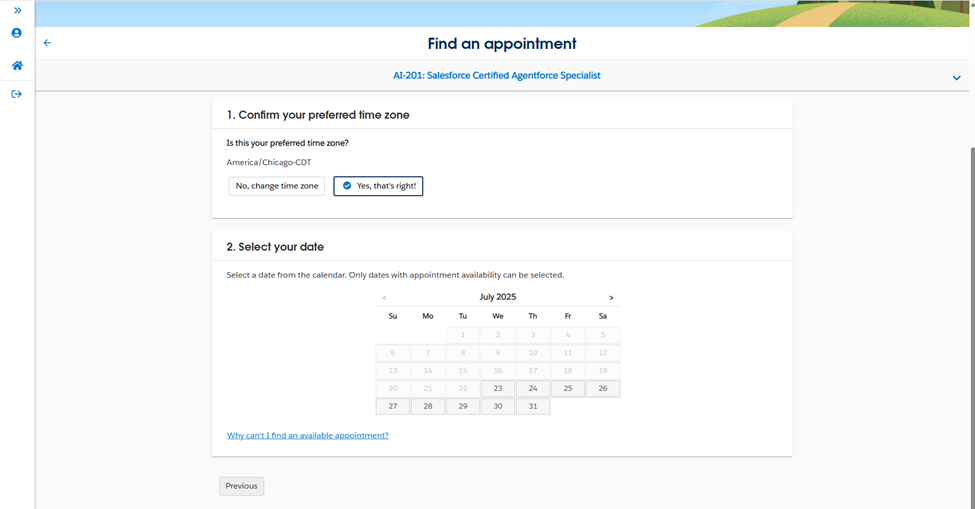
The actual experience of signing up for an appointment was relatively straightforward. From Trailhead you first enter your preferred language; the choices currently are English and Japanese. Then the timezone listed in your Trailhead profile will appear, but you can select a different one, and you click on your preferred date.
The system will suggest a recommended appointment start time. At first I thought that was the only open time but then I realized there was a button called “Explore more times”. Click that to see all of the available slots for that day.

⚠️An important difference to note is that your appointment time is for when the Exam is scheduled to start but the expectation is that you start the check-in time thirty minute before that time.
CHECK IN AND VERIFICATION
I thought I would be extra prepared and downloaded and ran the OnVue software and Systems Test the night before. You do that by going to https://www.pearsonvue.com/us/en/salesforce/onvue.html and clicking on Run system Test. I felt better knowing it worked but ultimately it did not save me any time on test day as I was required to do it again.

When you arrive thirty minutes early for check-in you will be asked to install and Run the System check which basically locks down your computer for only the test. So make sure you have install permissions on your computer. For this reason work computers usually will not work.
You will be given a QR code to scan on your mobile phone where you will take photos of the front and back of your government issued identification. You will also take photos of your desk from multiple angles–including front and back.
Then you are told to put your mobile phone aside and you will be put in a queue to be checked in by a proctor. This is the worst part. You literally just have to set there staring at a camera view of yourself. Fortunately it does show where you are in the queue. I was 7th in the queue so it took a while before it was finally my turn.
When the proctor came on they had me hold up my laptop so the camera would show every possible part of my desk. They told me to remove my tissue box, then they told me to remove my pen container, then they told me to remove my bobblehead, and on and on it went. The instructions said to “Remove all other items from your desk and at arms’ reach”. I felt the items were well out of arms reach but apparently they were still too close. Lastly, I had to hold up my laptop camera to show that my non-used monitors were unplugged.
I truly do appreciate this thoroughness though, as I work very hard to learn and study for my exams. I applaud any effort to stop people from cheating.
Test Day Recommendations
- It was awkward trying to hold up the laptop to point the camera to show my test area. Next time I will use an external webcam
- Next time I will just take the test at the kitchen table instead of having to literally take everything off my work desk and unplug all my monitors.
- Remind others in your household that you are taking an exam and ask them to be quiet and avoid streaming to ensure you have adequate bandwidth.
THE SALESFORCE EXAM EXPERIENCE
It took the full thirty minutes before I was finally given the greenlight from the Proctor to take the exam. As with WebAssesor, there are some instructions and agreements before the exam appears. When you are ready you can start the actual test.
Once I started the exam the first question appeared right away and I could see the timer countdown in the upper right corner of my screen.
I thought I read that I could zoom in to make the font larger but I could not immediately figure out how to do that and gave up as the font was a decent size already. I had my reading glasses on my head in case I needed them but never did.
💖💖My absolute favorite new feature is the ability to strike out options that I knew were incorrect. It was a bit finicky at times to strikethrough but if you click on the text of the answer it will show the line like this. That really reduced my overall test time as I did not waste time rereading all the options.
As with WebAssessor you could flag records that you wanted to review later. It was quite easy to click the flag button to mark items.
You then have the option to go back and review the items that were flagged. Another nice new functionality is that the start of the question is displayed. So instead of just showing that I had question 2 and 3 flagged, it would show the first 100 or so characters from the question. Even though it is hard to really know the gist of a question from just the first few characters I found this added to my confidence and allowed me to quickly find a question that I wanted to go back to.
Here is an illustrative example of how the Salesforce Review section looks:
| Number | Question | Flagged |
| 1 | Acme corporation wants to… | |
| 2 | What is the best way to… | 🏴 |
| 3 | How would a developer… | 🏴 |
Unfortunately this new tool did not show a count of the number of records that I had flagged the way WebAssessor did. I had to manually try and count them in order to gauge my confidence in passing the exam. For example, if I had 10% flagged then I knew I would be good but if I had 15% flagged then I would want to review them some more.
SALESFORCE EXAM RESULTS
Once you submit the exam you will immediately see if you passed along with your percentage right for each major area.
I am happy to report that I passed the exam.
For me it is stressful taking an exam because the questions are so complex and one accidental glance to the side or unconscious mumbling to yourself can cause the proctor to step in. So after about 15 minutes of decompressing I logged into Trailhead to see if my new certification showed up. The shiny, new certification badge was already there.
Best of luck to you on your certification journey.
######
Hands on Salesforce Training
Posted: July 13, 2023 Filed under: Uncategorized | Tags: Dreamforce, Salesforce Leave a commentPractically all of us have goals that our managers expect us to achieve so that we continue to grow as an employee and as a person. As we are approaching fourth quarter what have you done to achieve YOUR goals?
For me, I find attending Salesforce community events helps me expand my skillsets and open my mind to new ideas. There are two primary types of community events in the Salesforce ecosystem. Local and Regional.
The local events take place in dozens of cities around the globe. These events are organized by local volunteers, like me, who know that we can succeed more together than apart. There you can meet with other Salesforce professionals from your area, attend training on new features, see demos of apps, share ideas, discover new approaches and bounce thoughts off of other Salesforce professionals.
Dreamin’ Events
The regional events are often known as “Dreamin'” events. As the name implies many attendees at these regional events can only dream of going to Dreamforce in San Francisco. Time and budget simply does not allow for it. So in an effort to help those that can not make it Dreamforce the Dream’ events were born.
The first “Dreamin” event was Midwest Dreamin’. I was part of the original committee that organized it in 2014. I remember the excitement and fear after we signed that contract for what felt like an exuberant amount of money to reserve Navy Pier in Chicago. We knew we had to make this event a success in order to pay for the space. Little did I need to worry as there was a huge demand for an event like this. Dreamforce was simply not accessible for most people.
Since then the concept of “Dreamin'” events have spread like wildflowers. Today you will find several multi-day “Dreamin” conferences around the world. They all have amazing speakers featuring-real-world advice. They all have amazing sponsors from the appexchange and partner community who help keep costs affordable for attendees. And because these events are often around 300-500 people you can make personal connections with the speakers and other attendees.
What‘ Are You Waiting For?
If you have not been to a “Dreamin” event in your region what’s your excuse?
I would be shocked if you know everything about Salesforce, I have been in the ecosystem since 2006, hold over a dozen certifications and have been a Salesforce MVP since 2013. I live and breathe Salesforce and there is still so much I need to learn. Maybe the challenge is money. Most companies have continuing education funds. Be sure to use yours. Perhaps, you have asked and your company just won’t pay for these events. Some companies are just scrooges like this. If your company will not invest in you, then you need to invest in yourself. The good news is there are cost-saving opportunities. If you register early you can save big on registration. And at many events you can volunteer for a discounted or free registration. Take advantage of the hotel conference rate or find a cheaper hotel a block or two away. If you have to travel in from out of town, you can often use the event boards to find a roommate to split the costs or go with a friend from your local user group.
I speak to many attendees at these events that are self-funding their way and taking PTO to attend. That’s how valuable these community events can be.
So I hope the real reason is that you were not aware of the Salesforce community. Now that you know it is up to you, and only you, to get to your local or regional events.
Here’s a link to the local community groups: https://trailblazercommunitygroups.com
Here’s a link to the “Dreamin” events. https://trailhead.salesforce.com/community/conferences
I can’t wait to see you at the next one!
There’s a Tab for That
Posted: August 17, 2013 Filed under: SFDC Admin 101 | Tags: Mouse, Salesforce, Tabs Leave a commentIf you’re like me you might be working on one Salesforce task when someone calls you to work on something else. Instead of clicking away from what I was working on (and risk forgetting) I just open a new browser tab. It’s one of the beautiful things about working in the cloud. You can have dozens of items in flight at once.
Because Salesforce is web based not only can I use multiple browsers but I can also use multiple tabs to truly help me multi-task. As you can see by this screenshot, by default each tab is labeled so I can quickly jump between one item to another.

To open up a new tab you can right-click and select {Open Link in New Tab} but when you do that dozens of times a day it can get old fast. Fortunately there is an easier way – just configure your mouse so clicking on the middle button or mouse wheel opens a new tab. If you don’t have a middle button you can also open a new tab by holding the CTRL button and left-clicking. Either way will save you a few clicks each time which will add up to some serious time-savings.
Opening new tabs is a great tip for both admins and end users. For example, end users can use it to look up a new contact while still keeping the first contact window open.
Word of advice though, be sure you save any critical information before leaving a tab. Also keep in mind that the related lists will always reflect the most current state when ever the window is refreshed.
>>SMT
 crmology